
GoHighLevel Conversation AI Guide: Tips & Setup
⚡ Quick Answer
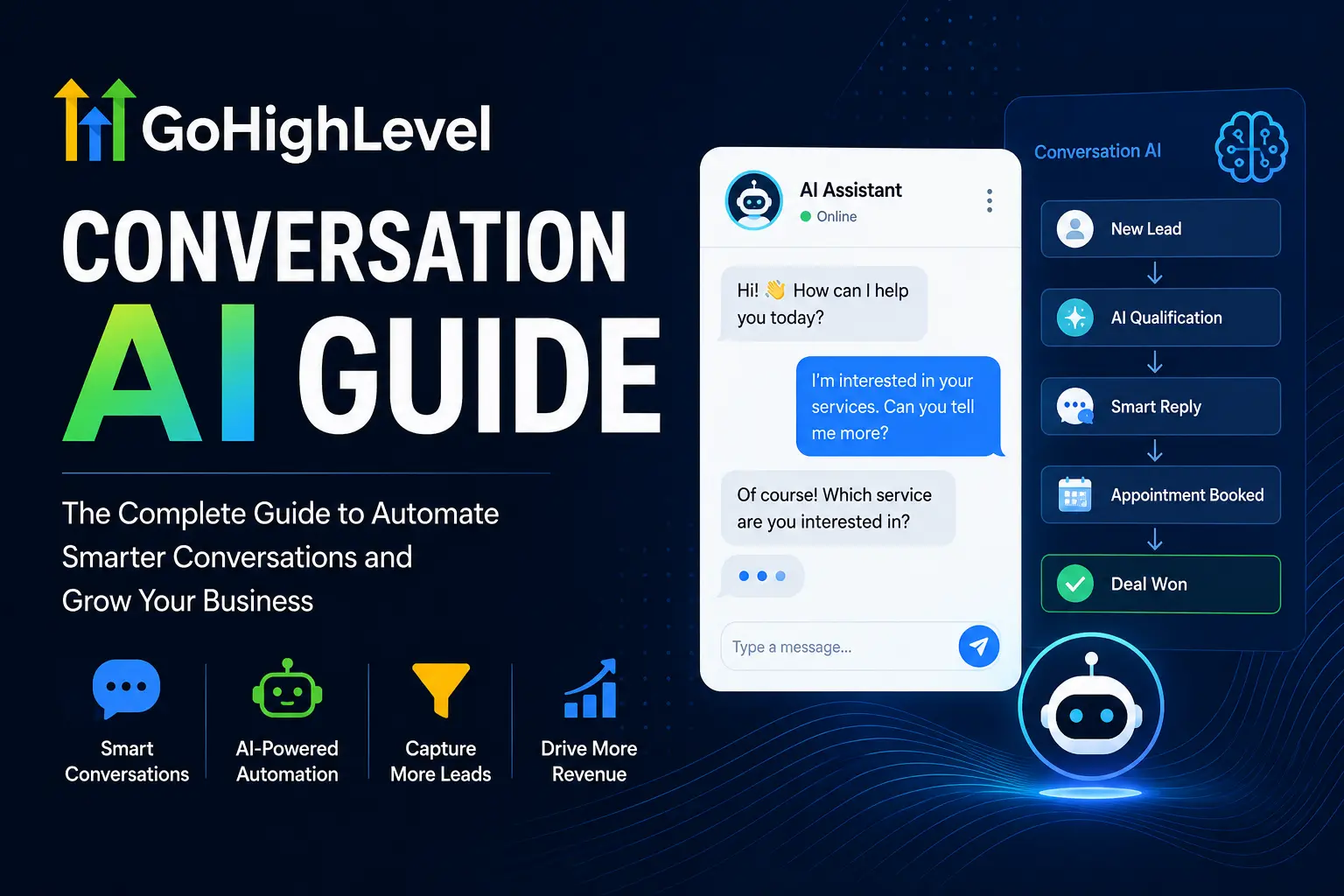
GoHighLevel Conversation AI is a built-in bot that answers leads, books appointments, and replies across SMS, email, and social chat. You turn it on inside AI Agents, train it on your business facts, and pick Suggestive or Autopilot mode. It costs $0 pay-per-use, $50, or $97 a month per sub-account in 2026.
What Conversation AI does for your business
- Answers questions: Uses your knowledge base to reply instantly.
- Books appointments: Checks your calendar and confirms slots.
- Works across channels: SMS, email, WhatsApp, Instagram, and Facebook.
Before you turn it on
-
✓
Start in Suggestive Mode until answers look right. -
✓
Load real FAQs, not vague notes, into training. -
✓
Check message volume before picking a pricing plan.
A lead texts your business at 11 p.m. asking about pricing. No one is awake to reply. By morning, they have already booked with a competitor.
That gap is exactly what Ashraful sees agency owners lose sleep over. GoHighLevel Conversation AI closes it by answering the moment a message lands, in your voice, on your terms.
This guide covers what Conversation AI actually is, how it works, what it costs in 2026, and how to set one up the right way. You will not need to guess at anything by the end.
📌 Key Takeaways
-
→
Two response modes exist: Suggestive drafts replies, Autopilot sends them alone. -
→
Bots train on uploaded files, website URLs, tables, and manual Q&A pairs. -
→
Pricing runs three ways: pay-per-use, $50/month Growth, or $97/month Unlimited. -
→
One knowledge base can power both chat bots and voice bots at once.
What Is GoHighLevel Conversation AI?
GoHighLevel Conversation AI is an AI agent built directly into the HighLevel CRM. It reads incoming messages and replies using facts you have taught it, all without leaving the platform.
You will find it under AI Agents inside any sub-account. It can suggest replies for a teammate to send, or send replies on its own in Autopilot mode.
Most agencies use it for three jobs. It answers repeat questions, qualifies new leads, and helps contacts book appointments.
But here’s the thing. The bot only knows what you train it on, so a thin knowledge base gives thin answers.
Conversation AI sits next to two other AI tools worth knowing: Voice AI for phone calls, and Workflow AI for automation steps. Together HighLevel calls this suite the AI Employee bundle.
If you are still deciding whether HighLevel’s AI stack fits your agency, our full GoHighLevel AI guide covers all six tools side by side.
How Does GoHighLevel Conversation AI Work?
Conversation AI reads an incoming message, checks its training data, and drafts a reply that matches the bot’s goal. It can qualify a lead, answer a question, or push toward a booking, all in one thread.
The bot runs in one of two modes. Suggestive Mode drafts a reply for a human to approve. Autopilot Mode sends the reply with no review step.
Most teams start in Suggestive Mode. That’s a smart move.
You watch the drafts for a week, catch anything off-tone, then flip the switch to Autopilot once you trust it.
This table shows how the two modes differ so you can pick the right one for your team.
Start with Suggestive Mode, then move to Autopilot once your team stops editing the drafts.
Conversation AI also connects to your GoHighLevel CRM contact record. So what does this mean for you? Every answer the bot gives, and every field it fills, updates the contact automatically.
You can also trigger Conversation AI from inside a workflow. That lets you pair it with the rest of your GoHighLevel automation instead of running it as a standalone bot.
Now let’s look at how you actually build one of these bots from scratch.
How Do You Set Up a Conversation AI Bot in GoHighLevel?
You set up a bot in five steps: create it, assign channels, add training, set a goal, then test before launch. HighLevel offers a guided form for simple bots and a prompt-based builder for advanced ones.
Here is the exact path to follow.
🔢 Step-by-Step: Building Your First Bot
-
1
Go to AI Agents → Conversation AI
Click + Create Bot from your sub-account dashboard.
-
2
Pick a setup method
Choose Guided Form for Q&A or booking, or Prompt Based for custom flows.
-
3
Assign channels and a bot goal
Connect SMS, email, or chat, then set the goal: answer, qualify, or book.
-
4
Add Bot Training
Connect a Knowledge Base with files, URLs, or manual FAQ pairs.
-
✓
Test, then launch
Send sample questions in the test panel before going live.
You might be thinking this sounds like a lot for one bot. Here’s why it’s worth it: a well-trained bot keeps working every hour you are asleep.
⚠️ Warning
Never launch a new bot straight into Autopilot Mode. Test it in Suggestive Mode first, or it may send wrong answers to real leads.
How Do You Train Your Conversation AI Bot?
You train a bot by feeding it a Knowledge Base. HighLevel accepts uploaded files, website URLs, rich text, tables, and manual FAQ entries as sources.
The more specific the source, the more accurate the answer. Vague notes produce vague replies.
That’s not all. HighLevel’s Web Crawler can index up to 4,000 URLs in a single Knowledge Base, mixing exact pages, folder paths, and full domains.
Once content is added, open the Retrieval Tester. Type a real customer question and check which source the bot pulled from.
✓ Training Checklist Before You Go Live
-
✓
Upload your top 20 real customer FAQs, not guesses. -
✓
Add pricing, hours, and service-area pages via URL. -
✓
Write Additional Instructions for tone and escalation rules. -
✓
Run 10 realistic test questions before launch day.
Here’s why that matters: one shared Knowledge Base can power both chat and Voice AI bots. No separate training is needed for phone calls.
How Much Does GoHighLevel Conversation AI Cost?
Conversation AI bills one of three ways in 2026: pay-per-use token pricing, a $50 monthly Growth plan, or a $97 monthly Unlimited plan. Each is priced per sub-account, not per agency.
The Growth and Unlimited plans are add-ons on top of your base HighLevel subscription. They do not include SMS or phone carrier charges.
Compare the three billing options below before you commit a client’s sub-account to one plan.
| Plan | Price | Best For ✓ Best |
|---|---|---|
| Pay-Per-Use | $0 base, token cost per message | Low or occasional message volume |
| AI Employee Growth | $50/month per sub-account | Predictable mid-size volume |
| AI Employee Unlimited | $97/month per sub-account | ✓ High-volume agencies and busy locations |
Most agencies break even on the $97 plan around 5,000 messages a month. Count your volume before you switch.
$97
Unlimited plan, per sub-account
5,000
Roughly the break-even message count
200K
Fair-use ceiling on messages per month
Voice AI is priced separately from Conversation AI, and it stacks several layers. See our GoHighLevel Voice AI pricing breakdown if you plan to run phone bots too.
What Channels and Features Does Conversation AI Support?
Conversation AI works across SMS, email, Facebook Messenger, Instagram, and WhatsApp. It also handles inbound voice notes and audio files, not just typed text.
You are not locked into a plain Q&A format either. HighLevel offers a visual Flow Builder for structured, multi-step conversations.
📋 Core Feature Set
-
Audio Response: Transcribes voice notes on WhatsApp, Messenger, and SMS. -
Flow Builder: Maps out multi-step, goal-based conversations visually. -
Appointment Booking: Checks calendars and confirms bookings mid-chat. -
Custom Fields: Saves collected lead details straight to the contact record.
So if you run a service business, this means voice notes, texts, and DMs all land in one bot instead of three separate tools.
What Most People Get Wrong About GoHighLevel Conversation AI
The first myth: people assume the bot “just knows” their business. It doesn’t. It only knows what you upload to its Knowledge Base.
The second myth: teams launch straight into Autopilot Mode. That skips the review step that catches bad answers before a lead sees them.
The third myth: people think one field, once saved, updates automatically later. It doesn’t. Conversation AI currently cannot overwrite a custom field that already holds a value, so repeat bookings with changed details can get stuck on old data.
Conclusion
GoHighLevel Conversation AI turns idle nights and busy hours into answered leads. Train it well, start in Suggestive Mode, and pick the pricing plan that matches your real message volume.
One thing to do right now: open AI Agents in your sub-account and check which bot mode is currently active.
Frequently Asked Questions
What is Conversation AI in GoHighLevel?
It’s an AI-powered agent built into HighLevel that automates replies across SMS, email, and chat. It answers questions, qualifies leads, and books appointments using a knowledge base you control.
How do I set up a Conversation AI bot?
Go to AI Agents, click Create Bot, choose Guided Form or Prompt Based setup, assign channels, add training sources, then test before launching in Suggestive or Autopilot mode.
What is the difference between Suggestive and Autopilot mode?
Suggestive Mode drafts a reply for a team member to approve before sending. Autopilot Mode sends the bot’s reply automatically, with no human review step.
How much does GoHighLevel Conversation AI cost?
It bills three ways: pay-per-use token pricing, a $50 monthly Growth add-on, or a $97 monthly Unlimited add-on, each priced per sub-account, on top of your base plan.
How do I train my Conversation AI bot?
Add sources inside Bot Training: uploaded files, website URLs through the Web Crawler, rich text, tables, or manual FAQ pairs. Then test answers in the Retrieval Tester.
Can Conversation AI book appointments?
Yes. When a bot has a booking goal, it can check calendar availability, confirm a time, and trigger a follow-up workflow, all inside the same conversation thread.
Does Conversation AI work with WhatsApp and Instagram?
Yes. Conversation AI supports WhatsApp, Instagram, Facebook Messenger, and SMS/MMS, including transcribing voice notes sent through those same channels.
