
How to Create a Funnel in GoHighLevel (2027)

⚡ Quick Answer
To create a funnel in GoHighLevel, open your sub-account, go to Sites → Funnels, click New Funnel, then start from a blank funnel, Funnel AI, or a template. Add the pages your customer needs, connect your form or calendar, attach a domain, publish, and test the full path before sending traffic.
Build Your First GoHighLevel Funnel
- 1Choose one clear conversion goal.
- 2Open Sites → Funnels and click New Funnel.
- 3Build your pages and add lead capture.
- 4Connect follow-up automation and your domain.
- ✓Publish and test the complete visitor journey.
Funnel Mistakes to Avoid Before Launch
- ✓Don’t mix several calls to action on one page.
- ✓Don’t launch without testing forms and workflows.
- ✓Don’t send traffic before checking the mobile layout.
| Platform: | GoHighLevel |
|---|---|
| Trial types: | 14-day standard, 30-day extended partner trial |
| 30 Days Trial: | Available ($0 trial for 30 days) |
| Price: | $97-$497 |
| Discount: | 20% OFF on all plans (save $994/year) |
| Special Offer: | 30-day free trial |
| Cancel: | Anytime from your billing settings before the trial renews |
| Best for: | Agencies, SaaS resellers, local businesses, coaches |
The screen is full of menus, buttons, and empty page blocks. Your cursor hovers over New Funnel, but the path from a blank canvas to a working lead flow isn’t obvious.
I’m Ashraful, and the simplest way to make GoHighLevel manageable is to build around one conversion goal. A GoHighLevel funnel is a sequence of pages designed to move a visitor toward an action such as submitting a form, booking an appointment, or purchasing an offer.
Once you understand that sequence, the builder becomes much easier to use. The goal isn’t to create the fanciest page; it’s to create a clear path that works from first click through follow-up.
📌 Key Takeaways
- →Start with one goal: Every funnel step should move visitors toward one conversion.
- →Three build paths: Blank, Templates, and Funnel AI cover most starting needs.
- →Forms create contacts: HighLevel forms can feed the CRM and start automated follow-up.
- →Test live flow: Check domains, redirects, submissions, workflows, and mobile layout before traffic.
“`
“`
How Do You Create a Funnel in GoHighLevel Step by Step?
Creating a funnel in GoHighLevel starts at Sites → Funnels inside the sub-account. Click New Funnel, then choose Blank when you want full control, Funnel AI when you want an AI-assisted first draft, or Templates when speed matters most. After the funnel is created, add or open each funnel step, set its page name and URL path, edit the layout, and save your changes. The current HighLevel builder also lets you create and reorder pages from inside the page editor.
The key is to build in customer order, not design order. Start with the first page a visitor sees, then create the next action and final confirmation page. You might be thinking a polished design is the hard part. It is not. The harder part is keeping one clear path from headline to call to action. So build the path first, then improve the styling.
HighLevel’s official funnel launch guide confirms the current Sites → Funnels workflow and the available starting options.
Choose your starting method based on how much control and setup speed you need.
Templates are usually the easiest first choice. Use Blank when your page structure needs to be fully custom.
🔢 Build the Funnel in This Order
- Define the conversion. Choose form submission, booking, purchase, or another single outcome.
- Create the funnel. Go to Sites → Funnels → New Funnel and choose your starting method.
- Create the steps. Add the landing, action, and confirmation pages your visitor needs.
- Edit each page. Replace the copy, images, buttons, spacing, and mobile settings.
- Connect the action. Add your form, calendar, order form, or another conversion element.
- Save and test. Follow the funnel yourself before sending visitors into it.
If you want a deeper look at the builder itself, the GoHighLevel Funnel Builder guide covers its core page-building and conversion features.
Once the pages exist, the next risk is more important than design: making sure the visitor’s action reaches your CRM and starts the correct follow-up.
How Do You Add Forms, Funnel Steps, and Automations?
A working GoHighLevel funnel needs more than pages: the lead-capture element must connect to the CRM and the next action must happen after submission. For a lead funnel, add a HighLevel form or calendar to the relevant page. A HighLevel form submission creates or updates the contact record, and the Form Submitted workflow trigger can start follow-up actions such as an email, internal notification, tag, task, or pipeline update.
Test the connection before you style every section. Submit the form with a fresh email address, confirm the contact appears in the CRM, check the thank-you redirect, and verify that the workflow fires once.
You might be thinking the funnel builder automatically sends follow-up just because a form exists. It does not unless you configure the form behavior or a workflow. So if follow-up matters, connect and test that automation before launch.
HighLevel lets you create forms from Sites → Forms and also work with forms inside supported funnel builders. The official HighLevel contact form guide explains fields, submissions, notifications, redirects, and testing.
- Landing page: Explain the offer and present one call to action.
- Form or calendar: Capture only the details needed for the next step.
- Thank-you page: Confirm the action and explain what happens next.
- Workflow: Send follow-up, notify your team, or update the contact record.
For example, a visitor can submit a consultation form, land on a thank-you page, enter the CRM, and trigger a confirmation email. That is where the funnel stops being a collection of pages and becomes a connected marketing system.
If the CRM side still feels unfamiliar, see the GoHighLevel CRM beginner’s guide. You can also see how funnels, contacts, pipelines, and workflows connect in How GoHighLevel Works.
When the capture and follow-up path works correctly, you are ready to connect the funnel to a public URL and launch it.
How Do You Connect a Domain and Publish a GoHighLevel Funnel?
To publish a GoHighLevel funnel, connect a root domain or subdomain, assign that domain to the funnel, save the page version you want to use, and publish it. HighLevel’s current domain setup supports automatic connection for some registrars and manual DNS records for others. If a funnel has no domain attached when you publish, the builder can prompt you to attach one before the selected version goes live.
Do not treat “Publish” as the final test. Open the live URL in a private browser window, click every button, submit every form, test the mobile layout, and confirm each redirect reaches the correct step.
You might be thinking a page that looks right in Preview is ready. Preview cannot prove that DNS, forms, redirects, and workflows all work together. So if you want a reliable launch, test the live funnel from first click to final confirmation.
For manual or automatic DNS setup, follow HighLevel’s root domain and subdomain setup guide.
⚠️ Before You Send Traffic
Test the live URL with a new email address. Confirm the page loads, the form submits, the redirect works, the CRM receives the contact, and the intended workflow runs.
Also check the page title, meta description, URL path, button links, desktop layout, and mobile layout. Small setup errors are easier to fix before ads, emails, or social posts start sending visitors.
If you are still getting comfortable with the wider dashboard, the beginner’s guide to using GoHighLevel gives you the surrounding setup order.
A live funnel is only the starting point. Once visitors arrive, the next question is where they continue and where they drop out.
How Do You Test and Improve a GoHighLevel Funnel?
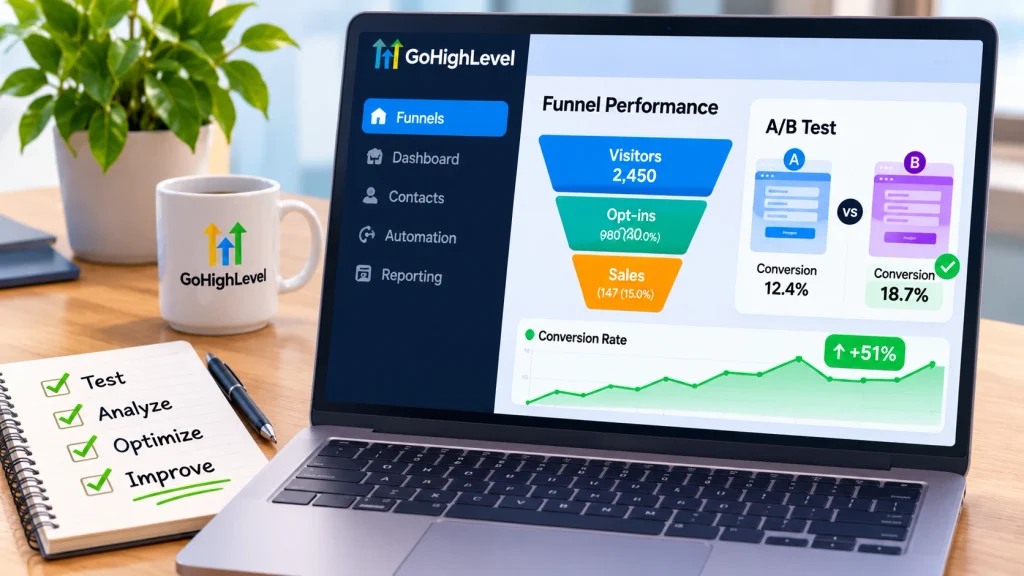
After launch, improve a GoHighLevel funnel by checking the numbers that match its goal, then changing one major variable at a time. HighLevel’s funnel statistics can show page views, opt-ins, sales, and earnings per pageview, while the broader Sites and Funnel Analytics area adds performance views across web assets. Funnels also support split testing, which lets you compare page variations instead of guessing which headline or layout works better.
Start with the biggest leak. If many people visit but few submit, test the headline, offer, form length, or call to action. If people submit but do not book, inspect the next step and follow-up. You might be thinking more traffic will solve a weak conversion rate. More traffic only sends more people through the same problem. So if the funnel is live, collect enough visits to spot a pattern, then test one meaningful change and compare the result.
- Low opt-in rate: Check offer clarity, headline, call to action, and form friction.
- Low booking rate: Check calendar availability, page transition, and confirmation messaging.
- Broken submissions: Test the form, required fields, redirect, and workflow trigger.
- Mobile drop-off: Check spacing, button size, text length, and page speed.
HighLevel separates funnels from standard websites in part because funnels support page split testing. Its current statistics tools also track funnel-focused conversion metrics, so you can make changes based on visitor behavior rather than preference.
Before you keep testing new ideas, remove the common setup mistakes that can make every experiment harder to interpret.
What Most People Get Wrong About GoHighLevel Funnels
Most beginners get three things wrong about GoHighLevel funnels: they treat a funnel as a single landing page, they build design before deciding the conversion path, and they assume lead follow-up happens automatically. In HighLevel, a funnel is normally a sequence of steps built around one goal. The pages, form or calendar, CRM contact record, and workflow should support that same goal rather than operate as separate pieces.
The fix is simple: think in transitions. Ask what the visitor should do on this page, where that action sends them, and what HighLevel should do after the action occurs. You might be thinking more steps make a funnel more persuasive. Extra steps often add friction unless each one has a clear job. So if a page, field, popup, or automation does not move the visitor toward the chosen outcome, remove it or move it outside the main funnel.
- Wrong belief: A funnel is just a landing page. Correction: Funnels usually guide visitors through a sequence of steps.
- Wrong belief: More design elements mean more conversions. Correction: One clear action is easier to follow.
- Wrong belief: Adding a form handles all follow-up. Correction: Configure the form behavior or workflow you need.
With those errors removed, your first GoHighLevel funnel can stay small, focused, and much easier to troubleshoot.
What Should You Do After Building Your First Funnel?
Your first GoHighLevel funnel does not need dozens of pages; it needs one clear goal, a short path, and tested follow-up. Build the pages in visitor order, connect the form or calendar to the CRM, attach your domain, and test the live path. Once visitors arrive, use your funnel stats to improve one weak point at a time. One thing to do right now: open Sites → Funnels and write down the single conversion goal before clicking New Funnel.
Frequently Asked Questions
What is a funnel in GoHighLevel?
A GoHighLevel funnel is a sequence of pages designed to move visitors toward a specific action, such as submitting a lead form, booking an appointment, or making a purchase.
Can I create a GoHighLevel funnel from a template?
Yes. Go to Sites → Funnels → New Funnel and choose the template option. Pick a design close to your goal, then replace its copy, images, links, forms, and branding.
Can I build a funnel with AI in GoHighLevel?
Yes. HighLevel offers AI-assisted funnel creation in supported accounts. If the AI option is unavailable in your account, you can still start from Blank or Templates.
Do I need a custom domain before building a GoHighLevel funnel?
You can work on the funnel before the final domain setup, but the domain should be connected and verified before you send real traffic to the live funnel.
Why isn’t my GoHighLevel funnel loading?
Check that the domain is connected, its DNS records are verified, and the correct funnel is assigned to that domain. Also test the URL in a private browser window.
Why isn’t my GoHighLevel form collecting leads?
Confirm the correct form is on the funnel page, submit a fresh test entry, then check Sites → Forms → Submissions and the contact record. Test any connected workflow separately.
Can I split test a funnel page in GoHighLevel?
Yes. HighLevel supports split testing for funnel pages, allowing you to compare page variations and use performance data to decide which version works better.
